Claude MCP
Claude Web & Claude Desktop
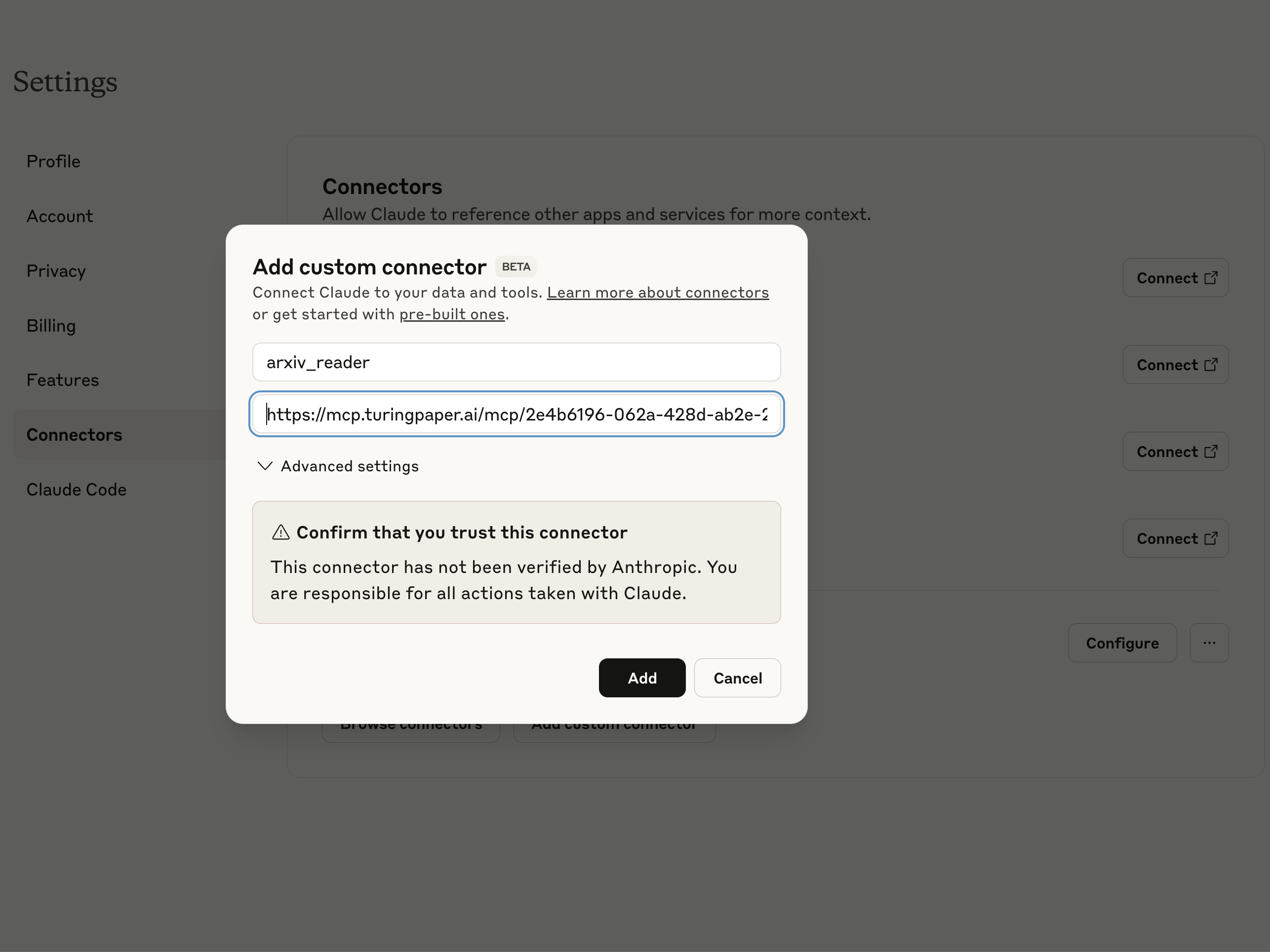
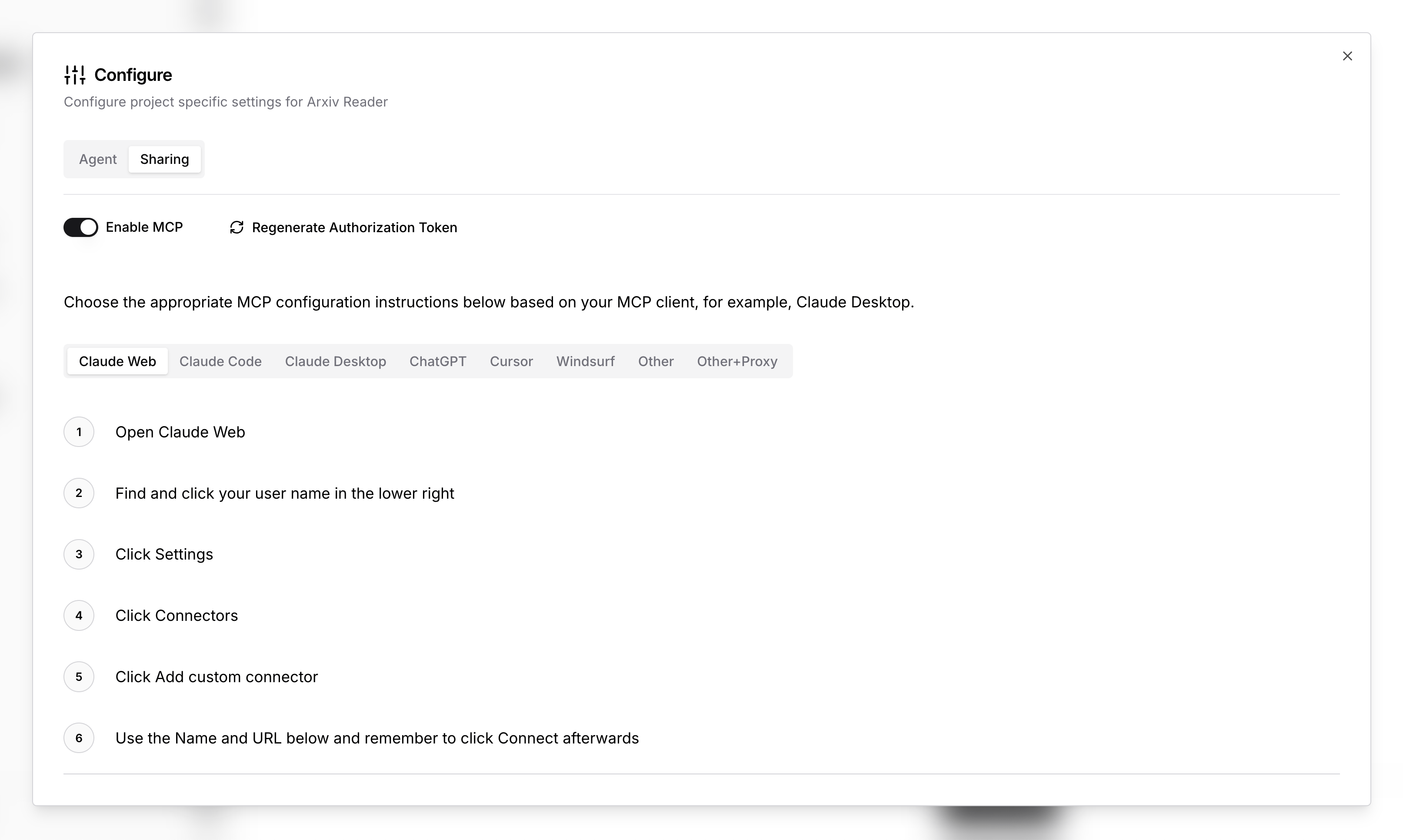
Open Claude Web or Claude Desktop
Find and click your user name in the lower right
Click Settings
Click Connectors
Click Add custom connector
Use the Name and URL below and remember to click Connect afterwards
Name: <name>
Remote MCP server URL: https://mcp.turingpaper.ai/mcp/<id>Claude Code
For Claude Code you can configure the MCP connection manually by creating a
.mcp.json file at the root of your project and adding the configuration.
It should look something like the configuration below.
{
"mcpServers": {
"<name>": {
"type": "http",
"url": "http://mcp.turingpaper.ai/mcp/<id>",
"headers": {
"Authorization": "Bearer <token>"
}
}
}
}You can also add a new MCP server using the claude command. From the
configuration JSON grab the name, ID, and token and run the command below to
add the project as an MCP server.
claude mcp add '<name>' 'https://mcp.turingpaper.ai/mcp/<id>' \
-s project \
-t http \
-H 'Authorization: Bearer <token>'Where do I find the ID and Name?
You can find these instructions and the full URL plus Name to use in the configuration panel of your project.
Anthropic Docs
For MCP documentation directly from Anthropic visit Anthropic Claude Code MCP Documentation